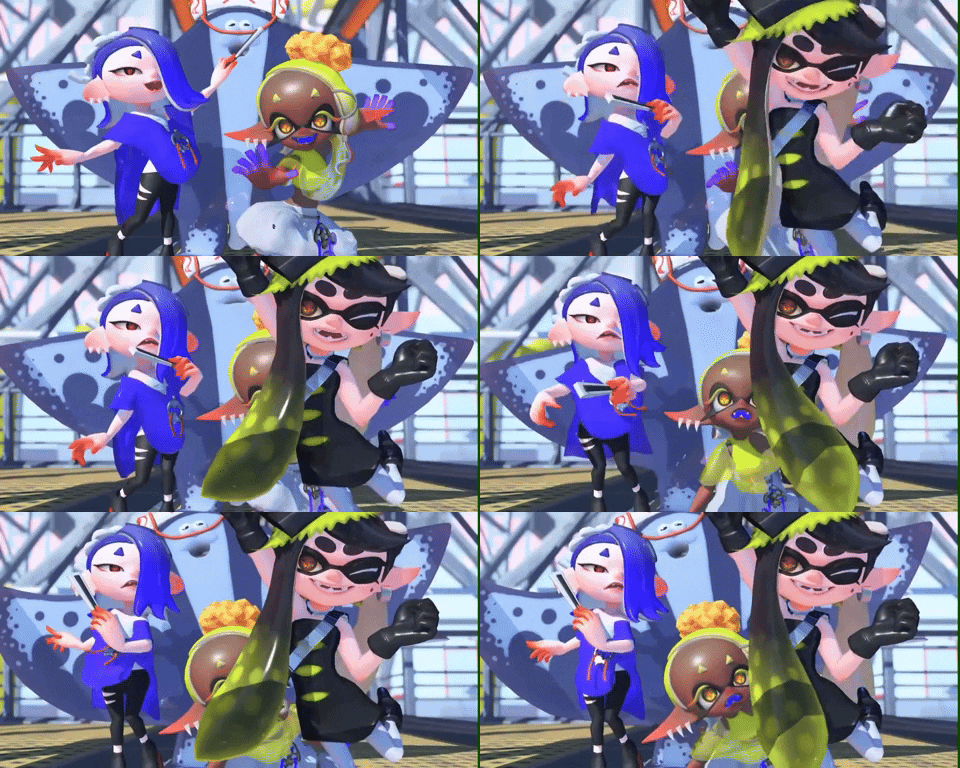
First, choose a header image to use in your widget (in the example above, this is the Alterna cutscene GIF). This image will have to have a 15:8 aspect ratio. You can pick your own image, or choose one from here. You will also need to download the widget's background image, which you can get here. You can use a different image if you want.
Next, choose what fonts you want to use in the webring. In the widget above, I am using the Matemasie font and the Sour Gummy font.
Finally, copy-paste the code below onto your website, and fill in the capitalized placeholders with your information.
<div id="webring-widget" style="background-image: url('YOUR CHOSEN BACKGROUND IMAGE'); font-family: YOUR CHOSEN REGULAR FONT; text-align: center; border-radius: 15px; padding: 15px;">
<img src="YOUR CHOSEN HEADER IMAGE" style="height: 100px; width: 188px; border-radius: 15px;">
<br>
<h2 style="margin: 0px; padding: 0px;"><a href="https://cephalopoptimism.neocities.org/webring" style="font-family: YOUR CHOSEN HEADER FONT; color: #ff3f7a; text-decoration: none;">Splatoon Webring</a></h2>
<br>
<p style="margin: 0px; padding: 0px;"><span style="color: white;"><</span>
<a id="prev" href="#" style="color: #ff3f7a; text-decoration: none; font-weight: bold;">prev</a> <span style="color: white;">|</span>
<a id="random" href="#" style="color: #ff3f7a; text-decoration: none; font-weight: bold;">random</a> <span style="color: white;">|</span>
<a id="next" href="#" style="color: #ff3f7a; text-decoration: none; font-weight: bold;">next</a>
<span style="color: white;">></span></p>
</div>